Buying and Using this Program you accept Sparrow Industries
Rules and obligate to follow them. Please read this notecard carefully before
buying it because we dont refund it after your purchase.
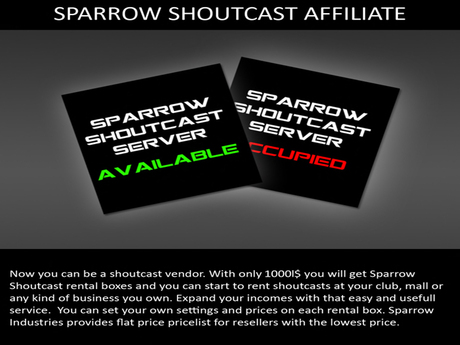
Expand your incomes with this easy and useful service. You
can set your own settings and prices for each rental box. Sparrow Industries
provides flat pricelist for resellers with the lowest price.
SparrowShoutcast Affiliate Vendor contains:
▷ Sparrow Streams Affiliate Boxed
All Sparrow servers are located at US with exclusive custom
programming that guarantee the best performance. We don't use any 3rd part
software except the official programs of shoutcast, shoutcast2 and icecast2.
The management and the entire system is complete Sparrow custom programming.
In the most cases and depending the final prices that you
will set, your commission will vary from 45% to 55% for every new stream and
each renewal through your rental boxes.
PREPARATIONS:
This item requires that you have access to land in Second
Life in order to unpack and use it. Sparrow Industries suggests you to prepare
place (club, shop, mall, ...) where you will be able to set up your own
ShoutCast/IceCast Shop with keeping 50% of each rent (+5%, -5%). To protect
market and each of Sparrow Streams Affiliate Shops we made restriction on
putting the lower or higher prices then 10%.
UNPACKING THE SYSTEM:
Open your inventory and find the box named Sparrow Streams
Affiliate Boxed. Drag it from your inventory to the ground. Open it and copy
its content to your Inventory. When you open your Recent Files Tab in your
inventory you will find folder Sparrow Streams Affiliate Boxed with this
content:
▷ My Sparrow Terminal
▷ Sparrow Radio ARS -
25 Boxed
▷ Sparrow ShoutCast Rules and Manual
▷ Sparrow Streams Rentalbox
▷ Sparrow Shoutcast
Update Disc v2.00
▷ Sparrow Support
Terminal
▷
SparrowHybridStreams (texture)
▷
SparrowHybridStreams2 (texture)
▷ SparrowShoutcastAdv
▷ Stream Settings Display
BEGINNING:
Drag the item named My Sparrow Terminal from your inventory
to the ground. When you touch it once it will give you link for Sparrow User
Pages and password for entering there. User name for My Sparrow pages is your
sl user name (not display name), with correct spelling and capital/small
letters. Once when you enter the site we
recommend you to go to the Settings menu
(http://my.sparrowindustries.net/settings) and change password to your own (it
will be easier to remember it, and you can change it any time you want). After you have changed your password press
the menu Home. At the Home page you will see pictures of some Sparrow Products
that can be controlled over web site. One that you own will be in colours,
other will be black and white.
If you have already purchased Sparrow Streams Affiliate
picture for Sparrow Streams Affiliate will be in color. When you click on it
with your left mouse button it will open user pages for Sparrow Streams
Affiliate.
SETTING UP YOUR SHOP (RENTAL BOXES):
1. Drag the item named Sparrow Shoutcast Rental on the
ground. It will ask you to grant permissions to take money from your account.
It is normal for all objects that deal with money transactions. Press YES to be
able transfer money from and to your account. Repeat this action until you put
desired number of rental boxes.
2. Place your rental boxes as you want.
3. Go to the web site and press Sparrow Shoutcast Affiliate
picture.
4. It will open new page where you will see menus: Tenants,
Rentalboxes, Transactions, and at the right side small window with options to
choose and button Go.
5. Press the Menu named Rentalboxes. There you will find all
your rezzed boxes in sl displaying: name of the virtual world where the box is
rezzed, Region name, Version of the Rentalbox, Name, Price, Kbps, KHz,
Listeners, tenant name (if box is rented), Date and hour of the last respond
and small empty square.
6. Choose one rental box and touch the small white sqare
from its right side (last thing in the line). It will show a sign like you are
choosing it.
7. Go up into right top corner and choose Edit Selected.
Press Button Go.
8. It will open new form where you can change details of the
each box (Title, Texture Available, Texture Rented, Size Available, Size
Rented, KBPS, KHZ, Listeners, Price).
9. You are allowed to put your own Titles, Textures and
Sizes.
10. Options for KBPS, KHZ and Listeners are already
integrated in the system so you can choose desired one for each box.
SETTIG UP THE PRICES:
1. At the Price line you will be able to put price for
choosen settings using SparrowShoutcast PriceList Sept 2010.
2. Those prices are set
to give you share of 50% of each rent. To describe you better we will
take example of one rental box with 128KBPs/44100Khz/100 listeners. Its default
price is 200L$ per week. When your tenant pay 200L$ to that box it will go to
your account and then it will take from your account 100L$ to account of Jack
Sparrow (CEO of Sparrow Industries).
3. If you want to put lower prices, system will allow you to
go -10% or + 10%. Lower and higher prices will be denied from system to protect
all other resellers and shoutcast market of sl in general.
4. If you try to put price lower or higher then 10% system
will send you next warning: Test 1: Denied. Allowed prices for those settings
can be from 180L$ to 220L$.
5. In
case you put allowed price in our example before(128KBPs/44100Khz/100
listeners) and it is 180L$, when tenant pay 180L$, you will keep amount of 80L$
and 100L$ will go to account of Jack Sparrow (CEO of Sparrow Industries).
16. In
case you put higher allowed price from our example (128KBPs/44100Khz/100
listeners) and it is 220L$, when tenant pay 220L$, you will keep amount of
120L$ and 100L$ will go to account of Jack Sparrow (CEO of Sparrow Industries).
TENANTS MENU AT THE WEB SITE:
At http://my.sparrowindustries.net/reseller/tenants you will be able to see list with all your
current tenants displaying from left to right: ordering number, Name of the
virtual world where box is rented, Tenant name, and window with the name of
current box. From the right side of that window is small triangle. when you
touch it it will give you list of the boxes where you can transfer their
tenancy. Be sure that box you will transfer your tenant to have same values as box before (KBPs, KHZ,
Listeners). If you transfer your tenant on different box it is possible to have
problems, so if you are not sure that you will do that correct ask help from
someone at Sparrow Industries Team, or write ticket at:
http://my.sparrowindustries.net/Tickets, asking help.
TRANSACTIONS MENU AT THE WEB SITE:
At http://my.sparrowindustries.net/reseller/transactions you
will be able to see each of your transactions made over Sparrow ShoutCast
Affiliate Boxes with diagrams for each month. It keeps details of each
transaction from the first to the last.
RESETTING RENTAL BOXES FROM THE WEB SITE:
If you want to reset one box go to
http://my.sparrowindustries.net/reseller/rentalboxes, choose correct box
checking the small square at the right side. Go to the top right corner and
choose Reset Selected in the window then press button GO. It will reset choosen
box in the world.
RESETTING RENTAL BOXES IN THE WORLD:
Sometimes rental box can be stucked in the world because of
lag, net or second life problems. You will see yellow text over it "Check
for tenant". Take that box in Edit
and go to your viewer menu Tools. Then press the line Reset Scripts in
Selection while you are stil keeping the box in Edit. It will refresh box and
return it back to normal.
MY SPARROW TERMINAL:
Find the object named My Sparrow Terminal in your inventory.
Drag it to the ground and place where you want. Incourage your tenants to use
it and control their streams from there. They can also get faster help by
filling a ticket or if they have questions, problems or any other needs.
SPARROW RADIO ARS - 25 BOXED:
In your inventory you will find item Sparrow Radio ARS - 25
Boxed. It is gift from Sparrow Industries that will be sent to each of your
tenants each time they pay their rental box. Inside the box there is manual
wich will help you to set it up. You and your tenants can use it as Dj Network
also. It will automatically recognize Dj that is using Sparrow Industries
stream when the touch DJ Login part.
SPARROW SHOUTCAST UPDATES:
Every time when we release updates for Sparrow Shoutcast
Affiliate we will send you few notification about it:
1. We will post it at http://my.sparrowindustries.net/ at
Home page
2. We will send group notices in Second Life
3. We will send notecard to each reseller warning them to
update their boxes to latest version.
Buying this system you have obligation to follow Sparrow
Industries rules and update your boxes to the latest version in next 30 days.
To update your boxes you will need to come to Sparrow
Industries Main Store. Pay to the vendor named SparrowShoutcast Affiliate
Vendor ammount of 1000L. Vendor will reject your money and return it back to
you but will send you latest version of this Affiliate including the lastest
boxes and latest update disc. There is item named Sparrow Shoutcast Update Disc
vX.XX in the folder, containing the last update. You will use it only if you
own Affiliate from before . Rezz the disc on the ground and touch it. It will
update all your rezzed boxes in the current region.
If you have boxes in more then one region you will need to
repeat it for each region. Each box will ask you to grant permissions for money
transfar. To make them alive you need to click YES.
USING SPARROW INDUSTRIES TEXTURES:
You can use Sparrow Industries textures: SparrowHybridStreams,
SparrowHybridStreams2, SparrowShoutcast PriceList Sept 2010,
SparrowShoutcastAdv - in your shop, your profile and advertizing your business
with this, not for other purposes.
DELETING BOXES IN THE VIRTUAL WORLD(SECOND LIFE):
If you delete your shop or boxes inside the second life, or
someone return them to you you will lose your shop, but all datas will remain
correct in the mysparrow web site. If you want to continue your business at
another location DON'T DELETE DATAS UNDER RENTAL BOXES MENU in Mysparrow web
site. When you rezz new boxes in your new locations you can tranfer them there
from the web site. For more help with this please contact someone from Sparrow
Industries Team or fill the ticket at http://my.sparrowindustries.net/Tickets.
DELETING BOXES IN MYSPARROW WEB SITE:
DO NOT DO THIS IF YOU DON'T WANT TO CLOSE your business with
Sparrow Shoutcast Affiliate. Even if there are not boxes inside the Second
Life, datas will be kept in mysparrow web site and we can easily transfer them
back to your new shop. If you delete boxes in the web site and there are stil
boxes rezzed in second life those will be dead. In this case tenants form all
dead boxes will be transfered automatically to Sparrow Industries Main Store in
order to be able use their service that they already paid. If losing your boxes
was not your fault Sparrow Industries will transfer you back your tenants when
you prepare place for that.
TRANFERING TENANTS:
If you must or want to close your shoutcast shop with
Sparrow Industries Shoutcast Affiliate Program and you have some tenants you
are obligated to inform us about that and transfer them to someone (any other
reseller or Sparrow Industries Main Store) to be able use service they have
already pay. If you dont do this in reasonable time they will automatically be
transfer to Sparrow Industries Main Store.
LOOSING THE LICENCE FOR THIS AFFILIATE:
Sparrow Industries keeps the right to:
▷ change these rules if we see need for that at any time
▷ cut you from the system :
▷ if you repeatingly don't follow these rules
▷ if you damage Sparrow Industries business in any way
▷ if you try to make damage to other Sparrow Industries
Affiliates and their places and business
▷ if you try to spread bad reputation to Sparrow Industries
Shoutcast and other Sparrow Industries Services
▷ if you deal unprofessional with your tenants
▷ after three serious warnings
▷ in any other case if we decide that certain behaviour or
action was not fair, honest and moral.
LINKS FOR THE HELP VIDEOS:
1.
http://www.youtube.com/watch?v=vx8oU0vPqPA&feature=channel&list=UL (How
to transfer shoutcast renter )
2.
http://www.youtube.com/watch?feature=player_embedded&v=9liuvfRJ_qM (Sparrow
Shoutcast- How to start ... )
3.
http://www.youtube.com/watch?feature=player_embedded&v=wdzgDrkdxHI (Sam
Broadcaster)
4.
http://www.youtube.com/watch?feature=player_embedded&v=T_R1Lu8zcvw (Virtual
DJ)
5. http://www.youtube.com/watch?feature=player_embedded&v=ZN0dqdqq5S0
(Winamp)
6.
http://www.youtube.com/watch?feature=player_embedded&v=rJEAxPb4mIM (check
your Internet speed)