Showing posts with label Club Equipment. Show all posts

Friday, November 6, 2015

Double Your Robobuddies Credit This Weekend!


An additional amount of L$ will be added to your payment this weekend. When you pay vendor Sparrow Industries will add you same amount on your Robobuddies credit. You will be able to see it in your local chat in SL and your Transactions page at https://my.sparrowindustries.net/robobuddies/Transactions. This special offer ends on Sunday, 8th (Second Life Midnight). For more informations please visit Sparrow Industries Main Store @ Kimberley! Yours, 
Sparrow Industries Team

Saturday, June 13, 2015

Summer Special Offer - Pay 4 get 5 stream weeks


Click here to visit
Special Offer to all ShoutCast-IceCast Stream Users (at Main Center and all Reselling stores). Pay 4 weeks and you will receive 1 week as a gift.  This special offer we will keep to the August end! Yours, Sparrow Industries Team.

Saturday, February 15, 2014

Sparrow DJ Login System

Introduction
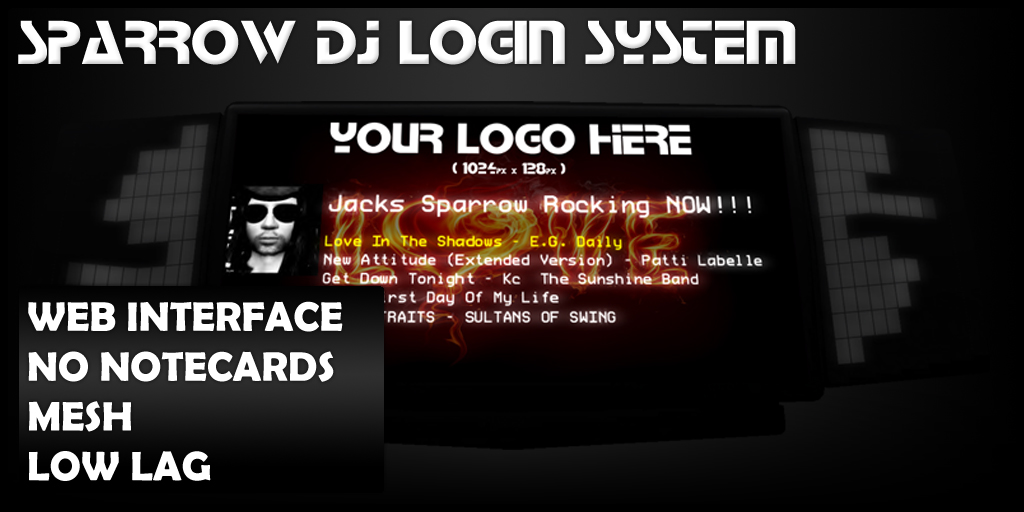
This system will allow your dj's to login and broadcast on your club. You can control this panel via web interface. Your DJ's will be able to manage their own settings via web interface. The entire system works without notecards nor any secondlife's limitation. For the sparrow DJ's, the system contains automated stream finder, so the dj's or club's stream will be retrieved automaticaly.
For Club owners
You can set this system to accept dj logins as Everyone, Group, Access List, or none. You can setup your club's main radio stream that will be used when no dj is connected and a club's stream in case your dj's does not own stream. 
For DJs
The settings for the dj's are global, that means when you change something on one panel, all the panels will reflect the new settings. In the cases when you change stream, all you will have to do is to update 1 time your settings and all the sparrow panels will reflect them. Also you can personalize your settings by changing the name that will appear on those panels, your picture and also you can use your own wall paper. Those settings will be displayed on every club that is using our system and you will only change them once.
For Hosts
Hosts on this system can be added by 2 ways. Club owners can add hosts for the club and also dj's can add their own hosts on their settings. That means if a dj has his own personal host that follow's him/her over several places, he can add on his personal settings and the panels will allow him/her to login as well. Keep in mind that the club owners have the ability to suspend this option.
Understanding the stream selection
When a dj is trying to login to the system, the system will perform the following checks

  1. The system will check if the dj has a valid music url specified on his sparrow dj comfiguration
  2. If the system cannot find any valid url supplied by the current dj then will start looking if the DJ owns a sparrow stream, if yes will provide this stream
  3. If the DJ doesnt own any sparrow stream then the system will look if the club owner have specified a default broadcasting stream
  4. If the Club owners doesnt provide a valid club stream then the system will lookup if the club owner currently owns a sparrow stream and it will provide that stream
  5. In case all the above situations failed, the system will not log the current DJ and he/she will need to click "DJ Settings" and specify his stream.
Possible Scenarions

  • For the djs that are changing stream url often, is ideal solution as they can change their new stream at anytime without to bother the club owners.
  • For Club owners that they want to use complex solutions as half dj's to use their own stream and others to use the clubs stream.
  • Dj's that changing Hosts often. As they will change host all they will need to do is to visit the website and change the name and she/he will be able to login automated.
  • For the typo lovers, just let the system perform the comfigurations for you. Make sure that the club owner or the dj's owns a sparrow stream and let the system do the rest.

Tuesday, September 17, 2013

Stream Greeters in Sparrow!!!

Find your rental box driving with ShoutCast Greeters!

Sometimes we  can't remember where is the rental box located. If that happens to you just come to Sparrow Main Store. At the entrance you will be welcomed by Sparrow Greeting Bot. Sit on it and drive straight to your box! HAVE FUN and save your time @ Sparrow Industries :)
Yours,
Sparrow Industries Team

Friday, August 30, 2013

Rent 4 get 5 weeks of stream - weekend offer!


Sparrow Industries gives Special Offer to all ShoutCast-IceCast Stream Users (at Main Center and all Reselling stores, ( InWorldz, Second Life, Avination)). Pay 4 weeks and you will receive 1 week as a gift. Pay 4 get 5 weeks! This special offer ends on Sunday, september 1st (SL Midnight)! 
Yours, 
Sparrow Industries Team
 For more information visit Sparrow Industries Main Store @ Kimberley!

Friday, August 23, 2013

Rent 4 get 5 weeks of stream - weekend offer!

Sparrow Industries gives Special Offer to all ShoutCast-IceCast Stream Users (at Main Center and all Reselling stores, InWorldz, Secon Life, Avination). Pay 4 weeks and you will receive 1 week as a gift. Pay 4 get 5 weeks! This special offer is end on Sunday 25th (SL Midnight)!  Yours,  Sparrow Industries Team. 
 For more information visit Sparrow Industries Main Store @ Kimberley!

PRO DJ STREAMS will stay active for InWorldz users!

SHOUTCAST PRO DJ STREAMS will stay active  for InWorldz users. Sparrow Industries staff will provide all necessary support. For help please contact Mimi Delicioso or Jacks Sparrow, or fill the ticket at http://my.sparrowindustries.net/Tickets

Sunday, August 18, 2013

Streams Special Offer - pay 4 get 5 weeks!

Sparrow Industries gives Special Offer to all ShoutCast-IceCast Stream Users (at Main Center and all Reselling stores). Pay 4 weeks and you will receive 1 week as a gift. Pay 4 get 5 weeks! This special offer is for two days only
Yours, 
Sparrow Industries Team. 
 For more information visit Sparrow Industries Main Store @ Kimberley!

Friday, August 2, 2013

Rent 4 get 5 weeks of stream - weekend offer!

This weekend Sparrow Industries has special offer for all ShoutCast-IceCast Stream Users (at Main Center and all Reselling Stores).
Pay 4 weeks and you will receive 1 week as a gift. Rent 4 get 5 weeks! This special offer ends on Sunday, 4th! (Second Life Midnight). Yours, Sparrow Industries Team. For more information visit Sparrow Industries Main Store @ Kimberley!

Saturday, February 2, 2013

Live concert @ Kimberley!

R&S Fashion Live concert! - Stella Del Sud Charisma and Roberto are performing a fantastic live concert. Come have fun with us!


Sunday, November 4, 2012

Find your rental box with one click!

Sometimes Dj's can't remember where is their rental box located. If that happens to you just come to Sparrow Main Store and at the entrance you will find board like this. Touch it and it will give you link to teleport right on your rental box, or list of your rental boxes (if you have them more) all around Second Life!
Yours,
Sparrow Industries Team

Saturday, November 3, 2012

Prim Battles - coming soon...


Prim Battles game is coming soon to Sparrow. In this testing period you can come to Sparrow Main Store, try it and play.

Friday, November 2, 2012

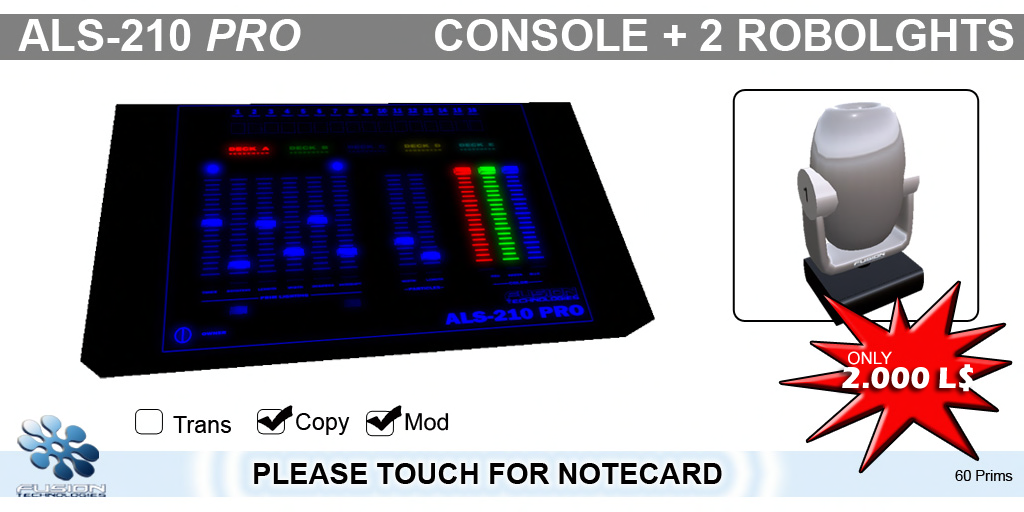
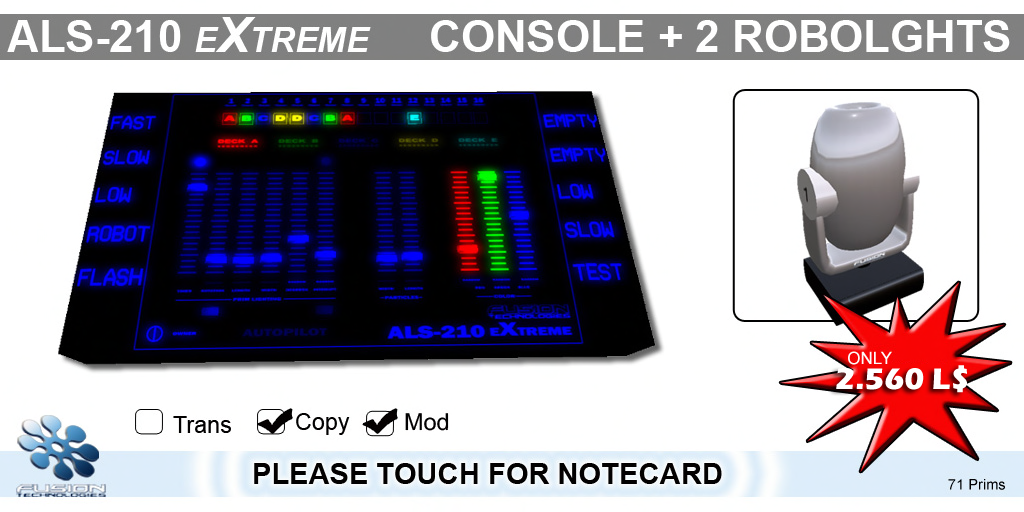
Weekend Special Offer - Club Light Systems 50% Discount

Now 600L$ Only!!!
Now 1.000 L$ Only!!!
Now 1.280L$ Only!!!
This special offer ends on Sunday, 4th!! (Second Life Midnight). 
  If you use Special Offer vendor the price drops for new 25%...Do not miss this opportunity! 
More about each of these Consoles you can read by clicking on them...
Yours, 
Sparrow Industries Team

Sparrow Turned to Hybrid!

Sparrow Turned to Hybrid
For everyone that stil doesn't know, when you rent Sparrow Industries Stream you get:
♬ Web Interface
♬ User Pages
♬ Choice between Shoutcast/ShoutCast 2/IceCast Streams
♬ Live Statistics
♬ Instant Activation
♬ Sparrow Radio with Every Renew of your Rent
and many many more...
505 DJ's Choose Sparrow! You?

Online Status

********************************
Visit our website at
http://www.sparrowindustries.net
********************************
ONLINE STATUS
By Sparrow Industries
9 Prims
MOD,TRANS,NO-COPY
---------------------------------------------------
Simple online status with photo and pictue frame. The pull down menu allows you to have basic choices like ON,OFF and RESET.
Simple but cute gadget to let everyone at your club or shop to see if you are online.
Best regards
Jacks Sparrow

Club Lights Affiliate - 50% Commission

Fusion Technologies Affiliate Program.
Now you can be a reseller of the unique and fully programmable ALS system in secondlife.
This product contains the vendor that will allow you to easily reseller ALS Consoles and Lights very easy at your place/home/club or any kind of land you own or have abilities to resell.
Grab this opportunity to become our reseller and expand your posibilities for profit.

Thursday, November 1, 2012

ShoutCast/IceCast Streams


 128Kbps/44100KHz/25 listeners - 50l$ week
128Kbps/44100KHz/50 listeners - 100l$ week
128Kbps/44100KHz/75 listeners - 150l$ week
128Kbps/44100KHz/100 listeners - 200l$ week
Choose different and custom settings in Main Store or become our reseller and keep 50% of each rent http://slurl.com/secondlife/Kimberley/205/132/28

ALS-210 EXTREME - Console and Club Lights System

ALS-210 EXTREME

Introduction :
========
===========================
ALS is most powerfull lighting system in second life.
Its  is so realistic and flexible, It gives you all the options you need ....
=======================================================================
Quick Start Guide for    *   ALS-210 EXTREME Console  *
                                                                          
============
===========================================================
Here i will explain how ALS-210 EXTREME Console  works
THIS CONSOLE IS PRIM TOUCH CONSOLE DONT EXPECT ANY MENU
You must touch it ( click ) to work
--On the down left side of the console is the power button
--Nexto to the power  you have some option
1)OWNER-Only owner can use the console
2)Everyone-All can use the console
3)Access list-Only  authorized person can use the console (Edit console--->more--->content----->open access list note---->Write the avatar name.)
4)Group-Group members can use the console
--With the console   comes  2 ALS Robotic Light 12CH

   On the top of the console, you will see the endconectors of the 16 light channels, you can set the one or more lights to each channel. The Pro and Extreme versions can control up to 16 channels
at the same time. Under every channel you will see an interactive box that can take values from empty to A-B-C-D-E, those are the deck conectors. Pro and Extreme versions are equeped with 5 fully programable Decks. Every Deck working as a seperate console and controles the lights real time. as example ,1 deck is 1 lite console.
   Under the Channel connectors, you will found the Deck Selector. you can select each deck by click on it, and you will see that the sliders will move up and down according to decks settings. Dont forget
that each deck is completaly intepentable from the others, so every setting you make is for the active deck.
  So we have 16 Channels and 5 decks and we have to conect them. that is posible with the conectors under the channel list, if you start clicking the boxes under the channels, the box wills start to counting
from empty to A B C D E, that means, the current channel will transmit the settings from the assigned DECK.
   To configure the channel u must click the side of the light where there is a number  ,if u touch the upper side of the number it will increase if the down side it will dicrease.
  
   The extreme version of the console, introduces the THEMES function and the AUTOPILOT. There are 10 themes located left and right of the main panel. When you make all the settings on all 5 decks, than
you can simply click and hold a Theme till it comes red. You will be asked then for a Theme name that you can type it in the public chat. If everyting goes corect you should see the theme turn green and active.
That will save all your current settings on that button with easy access. You can set diferent themes and switch from one to the other and see the whole lights settings change.
  If you have many themes saved you can enable the autopilot function, this will switch from theme to theme random every 20 secs.
 

----About EQ's
With eq you can configure the lights
----Prim Lighting------
Timer=Is the generic timer, this controles how fast or slow the changes to the lights will made
Rotation=the rotation speed of the lights
Length=the length of the prim light beam
Width=controles the prim's cone width
Degrees= the positiion of the robotic head will move in degrees
Interupt= this is for the flasing , this timer will make the lights turn on and off if the button lower of the slider is active
every slider has the Random trigger under it, that means you can choose from the console to pick random values seperate for every option
------Particles-------
Width= the particles cones angle
Lenght=how far the particles will go
every slider has the Random trigger under it, that means you can choose from the console to pick random values seperate for every option
-----Color----
The color mixer is usefull to create your favorite color you want from the light to have
every slider has the Random trigger under it, that means you can choose from the console to pick random values seperate for every option

ALS-210 PRO - Club Lights System


============================================================================


ALS-210 PRO
Introduction :
========
ALS is most powerfull lighting system in second life.
Its  is so realistic and flexible, It gives you all the options you need ....
========================================
Quick Start Guide for    *   ALS-210 Pro Console  *
                                                                          
============
Here i will explain how ALS-210 Pro Console  works
THIS CONSOLE IS PRIM TOUCH CONSOLE DONT EXPECT ANY MENU
You must touch it ( click ) to work
--On the down left side of the console is the power button
--Nexto to the power  you have some option
1)OWNER-Only owner can use the console
2)Everyone-All can use the console
3)Access list-Only  authorized person can use the console (Edit console--->more--->content----->open access list note---->Write the avatar name.)
4)Group-Group members can use the console
--With the console   comes  2 ALS Robotic Light 12CH

   On the top of the console, you will see the endconectors of the 16 light channels, you can set the one or more lights to each channel. The Pro and Extreme versions can control up to 16 channels
at the same time. Under every channel you will see an interactive box that can take values from empty to A-B-C-D-E, those are the deck conectors. Pro and Extreme versions are equeped with 5 fully programable Decks. Every Deck working as a seperate console and controles the lights real time. as example ,1 deck is 1 lite console.
   Under the Channel connectors, you will found the Deck Selector. you can select each deck by click on it, and you will see that the sliders will move up and down according to decks settings. Dont forget
that each deck is completaly intepentable from the others, so every setting you make is for the active deck.
  So we have 16 Channels and 5 decks and we have to conect them. that is posible with the conectors under the channel list, if you start clicking the boxes under the channels, the box wills start to counting
from empty to A B C D E, that means, the current channel will transmit the settings from the assigned DECK.
   To configure the channel u must click the side of the light where there is a number  ,if u touch the upper side of the number it will increase if the down side it will dicrease.
----About EQ's
With eq you can configure the lights
----Prim Lighting------
Timer=Is the generic timer, this controles how fast or slow the changes to the lights will made
Rotation=the rotation speed of the lights
Length=the length of the prim light beam
Width=controles the prim's cone width
Degrees= the positiion of the robotic head will move in degrees
Interupt= this is for the flasing , this timer will make the lights turn on and off if the button lower of the slider is active
every slider has the Random trigger under it, that means you can choose from the console to pick random values seperate for every option
------Particles-------
Width= the particles cones angle
Lenght=how far the particles will go
every slider has the Random trigger under it, that means you can choose from the console to pick random values seperate for every option
-----Color----
The color mixer is usefull to create your favorite color you want from the light to have
every slider has the Random trigger under it, that means you can choose from the console to pick random values seperate for every option
Here u can choose a combination of colors for the light.
============================================================================

ALS-210 LITE - Club Console and Light System

ALS-210 Lite  1 CHANNEL, 1 DECK, GRAPHICAL INTERACTIVE EQ
Introduction :
====================================================================

ALS is most powerfull lighting system in second life.
Its  is so realistic and flexible, It gives you all the options you need ....
========================================
Quick Start Guide for    *   ALS-210 Lite Console  *
                                                                          
============
Here i will explain how ALS-210 Value Console  works
THIS CONSOLE IS PRIM TOUCH CONSOLE DONT EXPECT ANY MENU
You must touch it ( click ) to work
--On the down left side of the console is the power button
--Nexto to the power  you have some option
1)OWNER-Only owner can use the console
2)Everyone-All can use the console
3)Access list-Only  authorized person can use the console (Edit console--->more--->content----->open access list note---->Write the avatar name.)
4)Group-Group members can use the console
--With the console   comes  1 ALS Robotic Light 12CH

On the lights are some numbers 1 to 12 these are the channels with the value console you can control only one channel.

To configure the channel u must click the side of the light where there is a number  ,if u touch the upper side of the number it will increase if the down side it will dicrease.ALso on  the console  you must choose the same channel with the ligths .To control more channels you can buy to value consoles or the pro console
FOR EXAMBLE

 4 lights are set to no1 channel   to make them work you should have no1 in console too. Its on the up left side.

----About EQ's
With eq you can configure the lights
----Prim Lighting------
Timer=Is the generic timer, this controles how fast or slow the changes to the lights will made
Rotation=the rotation speed of the lights
Length=the length of the prim light beam
Width=controles the prim's cone width
Degrees= the positiion of the robotic head will move in degrees
Interupt= this is for the flasing , this timer will make the lights turn on and off if the button lower of the slider is active
------Particles-------
Width= the particles cones angle
Lenght=how far the particles will go
-----Color----
The color mixer is usefull to create your favorite color you want from the light to have
Here u can choose a combination of colors for the light.


============================================================================