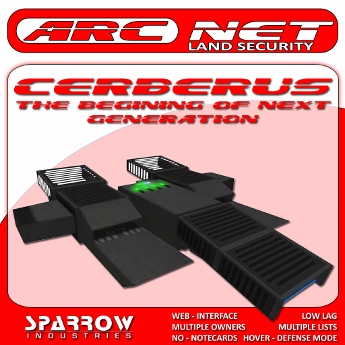
Arcnet Cerberus
==================================
Prims – 30
Web Interface – YES☑
Account Managers - YES☑
Custom Lists – YES☑
Custom Warnings – YES☑
Sim Radar – YES☑
Driveable – YES☑
Weapons – YES☑
Colour Changing – YES☑
BotWars – NO ☒
Invisible – NO☒
Resizeable – NO☒
Access from Mobile Phone - YES☑
==================================
Cerberus
equipped with Arcnet engine witch gives you maximum flexibility,
interactivity and security. Is fully controllable via web based windowed
AJAX environment, where all changes and information’s are live feeds
directly from in world.
You can use this device to protect or
monitor your home, mall, shop or any type of commercial/residential land
you own. Is designed to provide maximum security functionalities over
single person, group owned parcels or if you are estate manager entire
regions.
With 4 internal databases you will have no problem to store
as many names as you want. Internal databases are hybrid which means
the available space is shared between allow or attack lists. From
website you are able to have as many lists as you like, divided into
several groups like friends, family, co-workers for easy and fast
management. Unlike previous Arcadian engine securities, Arcnets
processing all targets in parallel mode. Arcnet’s supports Eject, Ban,
TPHome, Region Ban (Timed!) and Attack, where you can select witch
option fits to your needs.
Before you start.
You will need
to visit the main store to acquire your login password by clicking one
of the sparrow terminals. We strongly recommend changing the password
after the first login to http://my.sparrowindustries.net. Also DO NOT
use same password as your second life’s account.
Getting Started.
You can control your system from http://xxxxxxx.xxx . Be sure to add to
your browser’s favorites. From there you can login using your SL
username and the password.
After you login you normally must see an
empty website, no don’t be scared is normal. All you have now is to rez
your product in world and then from website, click on your top left
side where it says “Default Account”.
Website and Windows
Arcnet’s backend is completely simulating windowed environment. You will
not have to refresh, redirect or navigate from page to page but instead
you are able to open multiple windows at the same time, resize them and
reposition according to your needs. You can move a window by click-hold
left button and drag it to any position on your screen. You can also
resize it by the small rectangle under done button.
Understanding how lists works
On your top left you will see a button called Lists, you click that and
a new window containing your lists will open. When you click to add
new list you type the name on the dialog box and then you wait till the
new created list appears in window. Because of structure of the windowed
environment we use similar techniques like second life’s assets, so if
the list doesn’t appears instantly just wait a few moments till the
server sends you the correct asset. You can create as many lists as you
like, are easy small and simple. When you click the list you have create
a new window will open, there you are able to add avatars names. Be
sure you enter avatars username and NOT display name. Reason why we
choose to add avatars in that way is because display names can be
changed at any time. Agent names are case sensitive so be careful. The
name entering on the lists is YUSIWYG, so the final result if is correct
or wrong is entirely on your hands.
Understanding how modes works
Arcnet’s engine comes again with 2 main modes, Hover and Defense. The
idea is simple and quite effective from our past experiences. In hover
mode all the visitors will allowed to enter the protected parcel except
those in attack lists. In Defense mode none will allowed to enter except
the persons in the allow lists.
Options - Options – Options
General Options
Name: The name of the device.
Mode: The mode witch arcnet’s engine runs.
Radar Options
Range:
The maximum radar range. Can be set from 1 to 4096. When the system
works without satellites, the detection range goes up to 192m in
diameter. Large scale detections only will succeed with correct setup of
the satellites.
Parcel: This option controls the radar to ignore
targets that are located on parcels with different ID than the current
arcnet’s is hovering at. Very useful for single home land parcels where
you want to restrict the detection to your own home only. If the max
radar setting is less than the borders length, then limitation applies
from radar range.
List Options
Allow SL Group: When this
function is enabled and the system runs under Defense mode, visitors
wearing same group as arcnet’s will be allowed to enter. After initial
detection visitors can change the group title without problem. If
visitors leave the protection space and they try to re-enter again, they
must wear again the group title. If the system runs under hover mode,
this option has no effect.
Allow Lists: Here you can assign the
lists that you want to be handled allow lists. Those lists are necessary
when your arcnet’s is running under defense mode. In hover mode those
options have no effect.
Attack Lists: Here you can assign the
lists that you want to be handled attack lists. Those lists are
necessary when your arcnet’s is running under hover mode and you want to
restrict some residents. In defense mode those options have no effect.
Action Options
Warning
Message: This message will be send every time a target is queued for
actions. The is the first step of the agent removal procedure. You can
modify this message to fit with your needs and prepare the visitor for
his upcoming fate. The word [VISITOR] will be replaced with the actual
visitor name.
Warning Time: This is the time the system will
wait before continue with actions. You can set the time in seconds.
Setting this option to 0 will cause the system to proceed immediately to
next step.
Ban Length: Here you can set the length of time in
seconds you want to add and keep each target into lands or region ban
lists. Because of SL limitation when the final action is set to Parcel
Ban, the total length of the ban will be the floor rounding of the
division value/3600. When this option is set for region ban, the timed
event will count in seconds.
Final Action: 4 options are available
for final action. Eject will just eject the avatars from your parcel,
that means they will probably end up to the next parcel a few feet’s
away from you. Teleport Home will send the agent back to his home. Take
under consideration that if your visitors can set home to your place,
the intruder might set home to your place and cause that option
un-effective. Ban agent from Parcel is the most common and recommended
option. In case of group owned lands, you will need to deed the object
in the same group. In case the land is owned by you then no deeding is
required. Ban Agent from Region will add the agent to region ban list.
To be able this function work, the owner of the object must be estate
manager or estate owner of the region the system is located. If the
owner lacks those 2 options, this function will silently fail.
Attack Options
Attack
is: If you set this setting to enable, then each avatar will be
attacked for an amount of time you specify later after the warning
length expired and before the final Action occurs. That means if you set
the warning time on 10 seconds, the attack time on 4 seconds the final
action will take place 10 + 4 = 14 seconds after the first detection.
Attack
Time: Here is the value where you set the total length of the attack.
Please avoid large numbers and use this option wise. Recommended values
are between 3-5 when you using it without drones and 20-30 when you
include drones. In case of both we recommend 20 - 30 seconds.
Primary Weapons: When you enable this option and if the target is less than 30 meters , Arcnet will shoot.
Secondary Weapons: Not yet implemented.
Number
of Drones: This option is the number of drones will be send on each
target. Avoid using large numbers because will cause lag on your region.
Recommended values are 2 to 4. There is no limitation of the amount of
drones that will be send to the target.
When you click done, the
system always save the changed settings and ask you if you wish to
update the in world system as well. Click OK if you are sure you are
satisfied with the final changes.
Attack Time: Here is the
value where you set the total length of the attack. Please avoid large
numbers and use this option wise. Recommended values are between 3-5
when you using it without drones and 20-30 when you include drones. In
case of both we recommend 20 - 30 seconds.
Comments